
Edit a video with Codex and Remotion
Use Codex with Remotion to turn your clip into a captioned edit, with tighter pauses and simple animations.
By Alan Brown · Works with ChatGPT
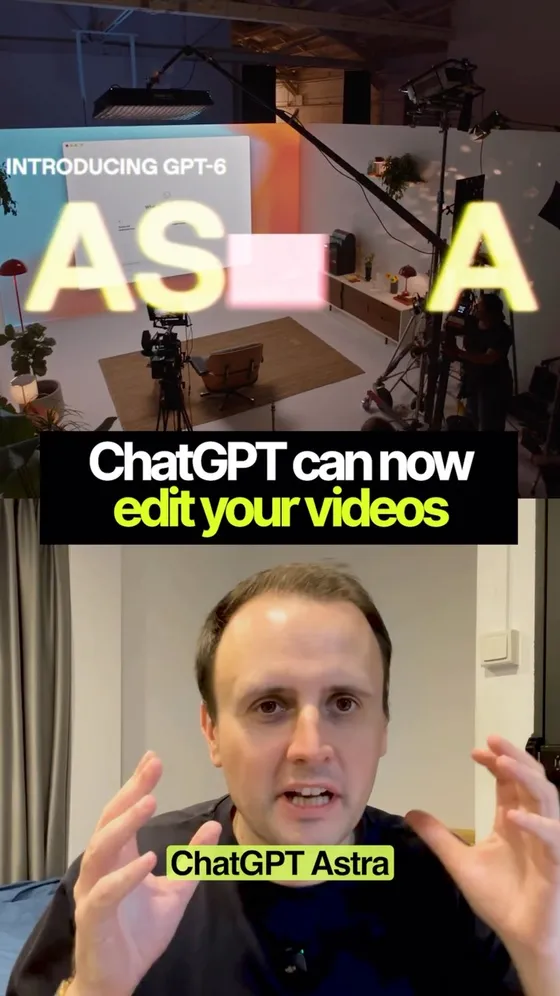
The video demonstrates editing through a Codex task with Remotion: provide your clip, describe the edit and review the result. Here is the setup and a more specific prompt for your first cut.
- 1️⃣ Open Codex in the ChatGPT desktop app. Open Plugins and search for Remotion. If it is available in your directory, install it and follow its setup instructions. Plugin availability and supported features can vary by surface and account.
- 2️⃣ Start a task and attach your source video. Tell Codex where you will post it, the aspect ratio, approximate duration and any caption style or brand colours you want.
- 3️⃣ Paste the editing prompt below. Ask Codex to confirm that transcription and rendering are available before it starts; the plugin may require additional local setup.
- 4️⃣ Review the first cut. Check names in captions, natural pauses, audio sync and whether vertical cropping keeps the subject visible. Request precise revisions, such as keeping a pause or reducing an animation.
- 5️⃣ Export the MP4 and keep the editable project for later changes. Rendering takes time, and a first cut may need another pass before you post it.
Context & limitations
The video shows a particular setup. Installing a plugin does not guarantee that every ChatGPT conversation can edit any clip; the task needs working video, transcription and rendering tools. The official source explains the shared plugin system, rather than confirming Remotion availability for every account.
Do this yourself
A clear editing brief defines the pacing, captions and export, while a review pass catches timing and transcription errors.
Want to build this with a teacher?
Pathwise Academy runs small, hands-on AI classes in Singapore for ages 10–17 and adults.